

Android 1.04
ANDROID 5.1+
Standard / Thor
Standard is for regular phones, tablets, foldables, and most Android handhelds. Thor is only for the AYN Thor dual-screen device.
 CyberPalm
CYBERPALM / 赛博手 · PUBLIC BETA
Low-latency Windows and Mac streaming for phones, tablets, and handhelds—plus a mobile Vibe Coding terminal.
MOBILE CLIENTS
CyberPalm clients and Base are early builds; Foundation Sunshine is a separate third-party project.
ANDROID 5.1+
Standard is for regular phones, tablets, foldables, and most Android handhelds. Thor is only for the AYN Thor dual-screen device.
HARMONYOS NEXT
Download the verified unsigned HAP, then debug-sign it only with your own Huawei developer account and device.
IOS · IPADOS
Now available on the App Store in every region except mainland China. No UDID registration or TestFlight invite is required.
INTERNATIONAL BACKUP
The dated 1.04 folder will be enabled only after every mirrored file matches the official checksums. Use the direct downloads above for now.
COMPUTER HOSTS
The mobile client discovers and controls a host running on your Windows PC or Apple Silicon Mac. Both sides are required.
WINDOWS HOST
Published and maintained by AlkaidLab, based on LizardByte Sunshine. This is a third-party open-source project, not a CyberPalm beta. The website pins the currently available 2026.07.05 stable release, which bundles ViGEmBus. Restart Windows after installation.
MAC HOST
Public distribution is paused while Base 1.02 completes Developer ID signing and Apple notarization.
VIBECODING TERMINAL
CyberPalm does not replace your development environment. It streams the editor, terminal, browser, and AI coding tools already running on your computer, with mobile controls designed for quick interaction.

ONE CONTINUOUS WORKFLOW
Keep the build and credentials on your own computer. Use a phone or tablet to review terminal output, answer an AI coding agent, make a quick edit, or check a long-running task without moving the project into another cloud workspace.
Your editor, shell, source code, AI agent, and build tools remain on the host computer.
CyberPalm carries the host display and input to a paired phone, tablet, or handheld.
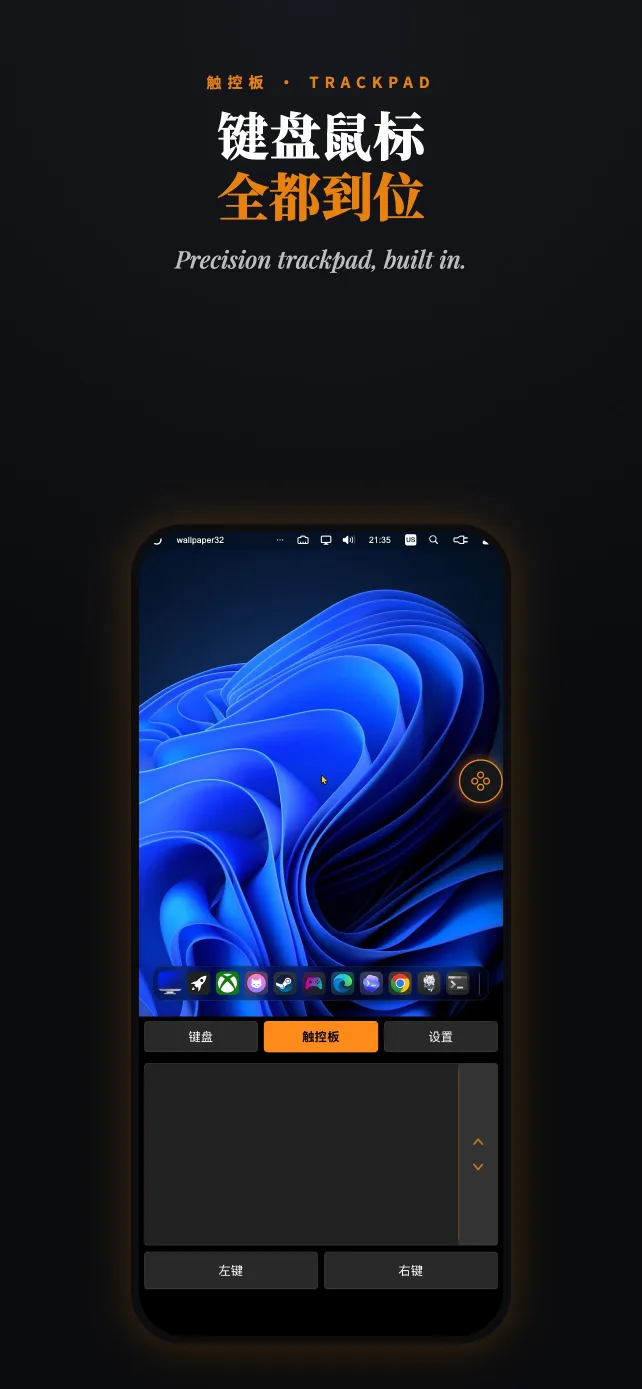
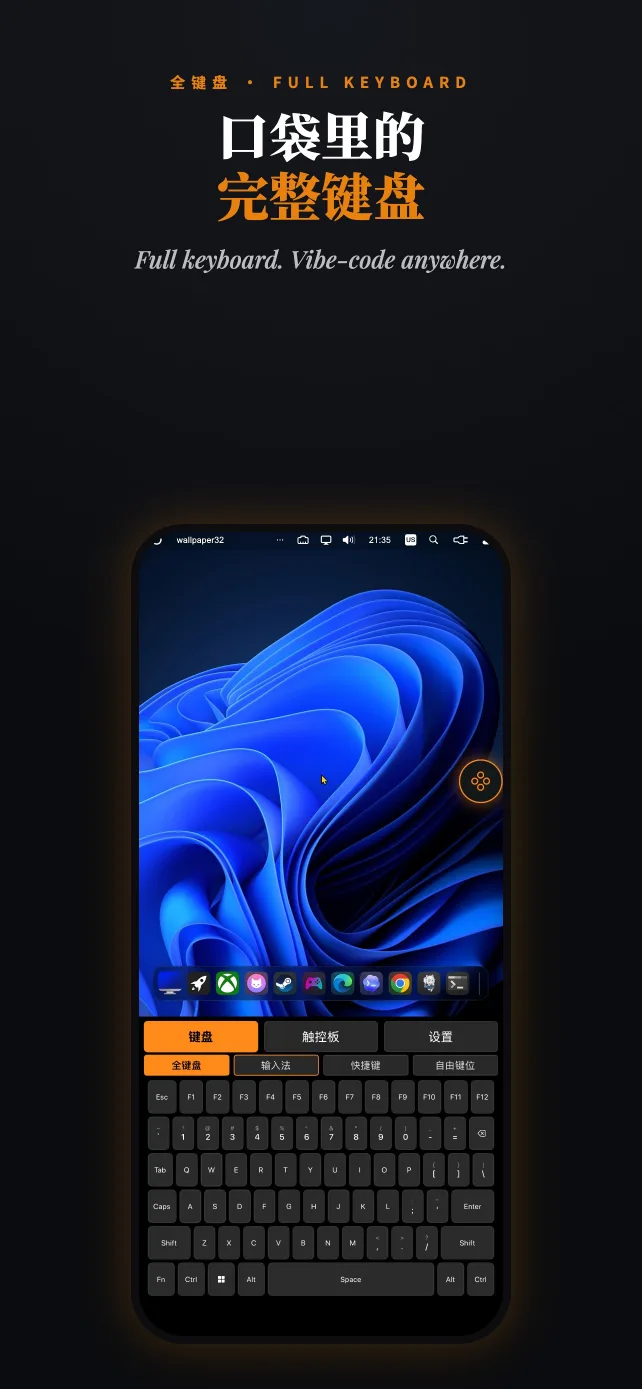
Move between keyboard and trackpad-style control to navigate desktop coding tools.
Review progress, respond to prompts, or fix a small issue without carrying the computer.
QUICK START
A mobile client alone cannot stream a computer. Install the matching host first, test on the same local network, and only then configure remote access.
Choose Android Standard, Thor, HarmonyOS NEXT, or download the official iOS release from the App Store.
Use Foundation Sunshine on Windows or CyberPalm Base on Apple Silicon Mac.
Put both devices on the same LAN. Select the computer in CyberPalm; the client displays the PIN.
Enter the client-displayed PIN in the host management page, then select Desktop or a game.
HARMONYOS SELF-SIGNING
The verified clean unsigned HAP is for temporary development side-loading, not an AppGallery-signed release. Never send your Huawei password, verification code, certificate, or private key to CyberPalm or a group administrator.
1. Enable Developer Mode and USB or wireless debugging on your HarmonyOS NEXT device.
2. Download the verified clean unsigned HAP and use XiaoBai Debug Assistant for that package, or DevEco Studio when you have the full project.
3. Sign in to your own Huawei developer account yourself and authorize only your own connected device.
4. Select the verified CyberPalm unsigned HAP, complete debug signing, install, and revoke unnecessary authorizations afterward.
Debug signing is temporary side-loading. It is not an official application-market signature and may expire or require reinstallation.
XiaoBai Debug Assistant 3.1 ↗ · Android 2.5 APK direct download ↗ · DevEco Studio ↗ · Huawei signing guide ↗
REMOTE STREAMING
Keep the host on Ethernet when possible and use 5 GHz / Wi-Fi 6 on the client. A stable LAN test separates app issues from router and carrier-network issues.
47990to the public internet. Use a strong host password and keep software updated.Use Tailscale or ZeroTier when the ISP uses CGNAT or when you do not want to expose streaming ports directly.
Enable automatic mapping only on a router you control, verify the created rules, and disable it if it is not needed.
Requires a public IPv4 address and a fixed LAN IP for the host. Forward only the streaming ports documented by the current host build.
SPECIAL THANKS
CyberPalm thanks the maintainers, contributors, and communities whose open-source work keeps low-latency streaming accessible.
Low-latency streaming client ecosystem
Moonlight maintains open, cross-platform clients and GameStream-compatible foundations used across the low-latency streaming community.
Open-source, self-hosted streaming host
Sunshine provides pairing, encoding, audio/video transport, remote input, and an open host for Moonlight-compatible clients.
Native HarmonyOS NEXT client
MoonlightOH advances a native Moonlight implementation for HarmonyOS NEXT and provides important engineering foundations for Harmony devices.
Enhanced Sunshine distribution for Windows
Maintained by AlkaidLab and based on LizardByte Sunshine, Foundation Sunshine adds a streamlined Windows distribution and host-side enhancements.
Project names and trademarks belong to their respective owners. This acknowledgment does not imply an official partnership. Source use, modification, and redistribution remain subject to each project license.
CYBERPALM COMMUNITY
CyberPalm is still adapting to many models, displays, decoders, and operating-system versions. For global support, open a structured GitHub issue with redacted screenshots or logs. Email remains available if you do not use GitHub.